<!DOCTYPE html>
    <html lang="vi" xmlns="http://www.w3.org/1999/xhtml" prefix="og: http://ogp.me/ns#">
    <head>
<title>Cách Tạo Ổ Đĩa Google Drive Trên Máy Tính</title>
<meta name="description" content="Cách Tạo Ổ Đĩa Google Drive Trên Máy Tính - Savefile - Tin Tức">
<meta name="author" content="Tiểu học Thạnh Phước">
<meta name="copyright" content="Tiểu học Thạnh Phước [tieuhoc@thanhphuoc.edu.vn]">
<meta name="generator" content="NukeViet v4.5">
<meta http-equiv="Content-Type" content="text/html; charset=utf-8">
<meta property="og:title" content="Cách Tạo Ổ Đĩa Google Drive Trên Máy Tính">
<meta property="og:type" content="website">
<meta property="og:description" content="Savefile - Tin Tức">
<meta property="og:site_name" content="Tiểu học Thạnh Phước">
<link rel="shortcut icon" href="https://thanhphuoc.edu.vn/uploads/unnamed.webp">
<link rel="canonical" href="https://thanhphuoc.edu.vn/vi/news/hoat-dong-cong-nghe-thong-tin/cach-tao-o-dia-google-drive-tren-may-tinh-17.html">
<link rel="alternate" href="https://thanhphuoc.edu.vn/vi/news/rss/" title="Tin Tức" type="application/rss+xml">
<link rel="alternate" href="https://thanhphuoc.edu.vn/vi/news/rss/hoat-dong-chuyen-mon/" title="Tin Tức - Hoạt động Chuyên môn" type="application/rss+xml">
<link rel="alternate" href="https://thanhphuoc.edu.vn/vi/news/rss/chi-bo/" title="Tin Tức - Hoạt động Chi bộ" type="application/rss+xml">
<link rel="alternate" href="https://thanhphuoc.edu.vn/vi/news/rss/cong-doan/" title="Tin Tức - Hoạt động Công đoàn" type="application/rss+xml">
<link rel="alternate" href="https://thanhphuoc.edu.vn/vi/news/rss/hoat-dong-tai-chinh/" title="Tin Tức - Hoạt động Tài chính" type="application/rss+xml">
<link rel="alternate" href="https://thanhphuoc.edu.vn/vi/news/rss/hoat-dong-doan-hoi-doi/" title="Tin Tức - Hoạt động Đoàn-Hội-Đội" type="application/rss+xml">
<link rel="alternate" href="https://thanhphuoc.edu.vn/vi/news/rss/hoat-dong-cong-nghe-thong-tin/" title="Tin Tức - Hoạt động Công nghệ Thông tin" type="application/rss+xml">
<link rel="alternate" href="https://thanhphuoc.edu.vn/vi/news/rss/hoat-dong-thu-vien-thiet-bi/" title="Tin Tức - Hoạt động Thư viện - Thiết bị" type="application/rss+xml">
<link rel="alternate" href="https://thanhphuoc.edu.vn/vi/news/rss/hoat-dong-thi-dua-khen-thuong/" title="Tin Tức - Hoạt động Thi đua - Khen thưởng" type="application/rss+xml">
<link rel="stylesheet" href="https://thanhphuoc.edu.vn/assets/css/font-awesome.min.css">
<link rel="stylesheet" href="https://thanhphuoc.edu.vn/themes/default/css/bootstrap.non-responsive.css">
<link rel="stylesheet" href="https://thanhphuoc.edu.vn/themes/default/css/style.css">
<link rel="stylesheet" href="https://thanhphuoc.edu.vn/themes/default/css/style.non-responsive.css">
<link rel="StyleSheet" href="https://thanhphuoc.edu.vn/themes/default/css/news.css">
<link rel="stylesheet" href="https://thanhphuoc.edu.vn/themes/default/css/custom.css">
<style>
	body{background: #fff;}
</style>
    </head>
    <body>
<div id="print">
	<div id="hd_print">
		<h2 class="pull-left">Tiểu học Thạnh Phước</h2>
		<p class="pull-right"><a title="Tiểu học Thạnh Phước" href="https://thanhphuoc.edu.vn/">https://thanhphuoc.edu.vn</a></p>
	</div>
	<div class="clear"></div>
	<hr />
	<div id="content">
		<h1>Cách Tạo Ổ Đĩa Google Drive Trên Máy Tính</h1>
		<ul class="list-inline">
			<li>Chủ nhật - 26/02/2023 21:20</li>
			<li class="hidden-print txtrequired"><em class="fa fa-print">&nbsp;</em><a title="In ra" href="javascript:;" onclick="window.print()">In ra</a></li>
			<li class="hidden-print txtrequired"><em class="fa fa-power-off">&nbsp;</em><a title="Đóng cửa sổ này" href="javascript:;" onclick="window.close()">Đóng cửa sổ này</a></li>
		</ul>
		<div class="clear"></div>
		<div id="hometext">
			Google Drive là dịch vụ lưu trữ tốt nhất hiện nay, được đông đảo người dùng yêu thích, sử dụng vì tốc độ download, upload nhanh, thân thiện mọi thiết bị…. Bài viết dưới đây LANIT xin gửi các bạn cách tạo và sử dụng Google Drive trên máy tính nhanh chóng – an toàn dữ liệu và làm việc hiệu quả
		</div>
				<div class="imghome">
			<img alt="undefined" src="https://thanhphuoc.edu.vn/uploads/news/2023_02/cach-tao-gg-drive.jpg" width="460" class="img-thumbnail" />
		</div>
		<div class="clear"></div>
		<div id="bodytext" class="clearfix">
			<p>&nbsp;</p>
<br />
<img alt="Cách tạo GG Drive trên máy tính dễ dàng 1" data-lazyloaded="1" data-ll-status="loaded" data-src="https://lanit.com.vn/wp-content/uploads/2022/06/cach-tao-gg-drive.jpg" height="299" src="https://lanit.com.vn/wp-content/uploads/2022/06/cach-tao-gg-drive.jpg" title="" width="400" />
<h2>Cách tạo GG DRIVE nhanh chóng trên máy tính</h2>

<p><strong>B1. Đăng nhập tài khoản Gmail</strong></p>

<p>Để tải phần mềm Google Drive&nbsp;bạn cần đăng nhập vào tài khoản Gmail</p>

<p>Mở trình duyệt web(Chorme), truy cập mail.google.com, click và đăng nhập tài khoản</p>

<p><strong>B2. Tải Drive cho máy tính</strong></p>

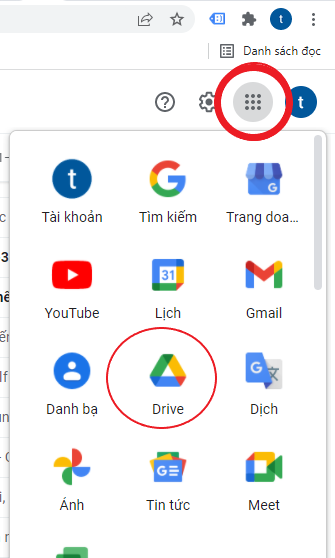
<p>Sau khi vào tài khoản Gmail, ta hãy Truy cập vào Google Drive, Tìm đến biểu tượng 9 chấm (bên phải màn hình) và chọn Google Drive</p>
<br />
<img alt="undefined" data-lazyloaded="1" data-ll-status="loaded" data-src="https://lanit.com.vn/wp-content/uploads/2022/06/cach-tao-gg-drive-01.png" height="558" src="https://thanhphuoc.edu.vn/uploads/news/2023_02/cach-tao-gg-drive-01.png" title="" width="335" />
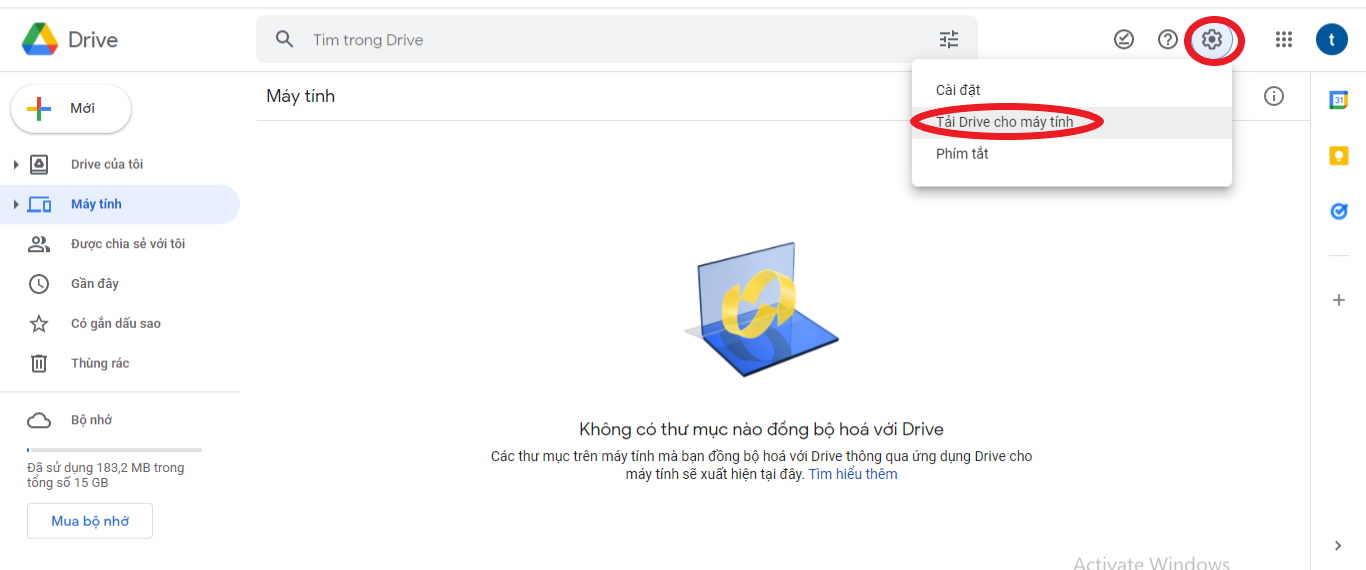
<p>Click biểu tượng&nbsp;<strong>bánh răng</strong>&nbsp;và nhấp&nbsp;<strong>“Tải Drive cho máy tính”</strong></p>
<br />
<img alt="undefined" data-lazyloaded="1" data-ll-status="loaded" data-src="https://lanit.com.vn/wp-content/uploads/2022/06/cach-tao-gg-drive-02.png" height="570" src="https://thanhphuoc.edu.vn/uploads/news/2023_02/cach-tao-gg-drive-02.png" title="" width="1366" />
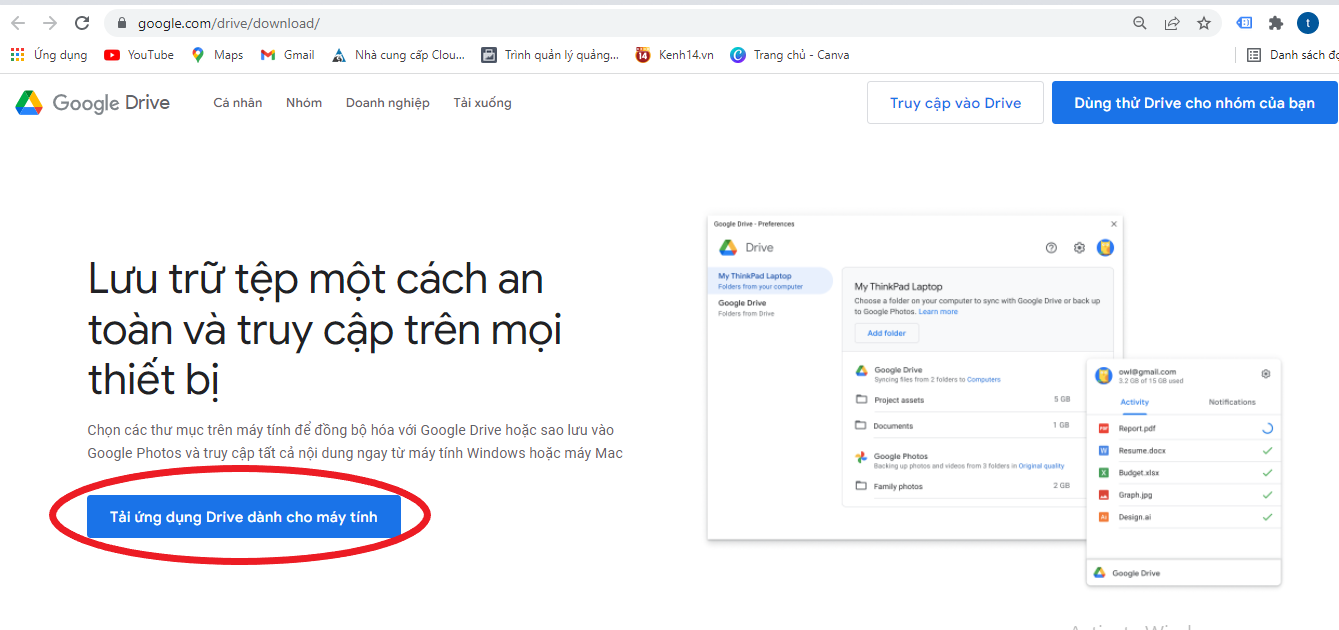
<p>Click tải ứng dụng Drive dành cho máy tính</p>
<br />
<img alt="undefined" data-lazyloaded="1" data-ll-status="loaded" data-src="https://lanit.com.vn/wp-content/uploads/2022/06/cach-tao-gg-drive-03.png" height="630" src="https://thanhphuoc.edu.vn/uploads/news/2023_02/cach-tao-gg-drive-03.png" title="" width="1339" />
<p><strong>B4. Cài đặt Google Drive</strong></p>

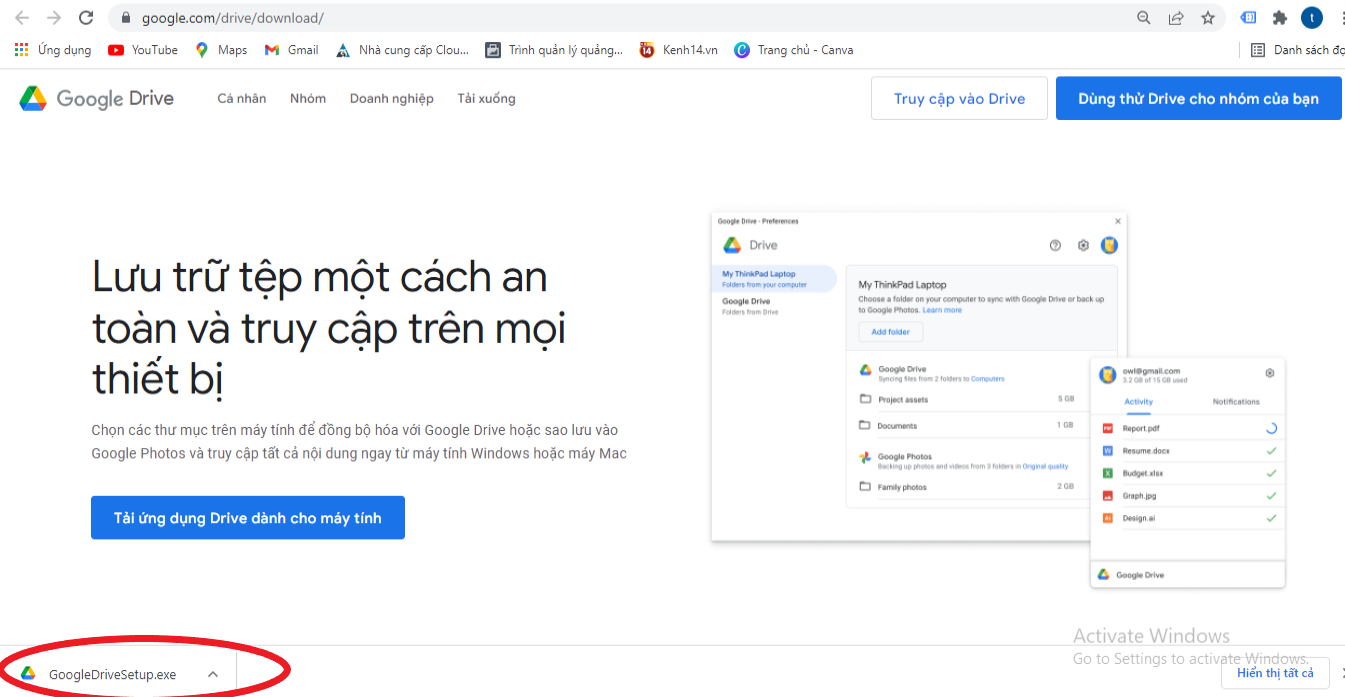
<p>Ứng dụng tải xuống, cài đặt bằng cách&nbsp;<strong>mở trực tiếp file trên tab</strong>&nbsp;hoặc ở&nbsp;<strong>forder download</strong></p>
<br />
<img alt="undefined" data-lazyloaded="1" data-ll-status="loaded" data-src="https://lanit.com.vn/wp-content/uploads/2022/06/cach-tao-gg-drive-04.png" height="697" src="https://thanhphuoc.edu.vn/uploads/news/2023_02/cach-tao-gg-drive-04.png" title="" width="1345" />
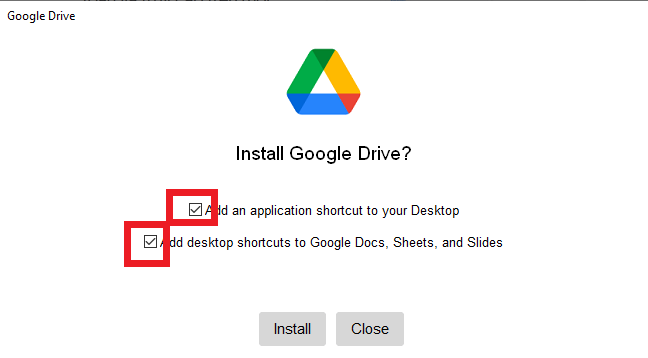
<p>Trong bước đầu cài đặt, bạn Có thể click cả 2 lựa chọn:</p>

<ul>
	<li>Add an application shortcut to your Destop: Tạo Shortcut trên màn hình destop</li>
	<li>Add desktop shortcuts to Google Docs, Sheets, Slides: Tạo Shortcut trên màn hình destop</li>
</ul>
<br />
<img alt="undefined" data-lazyloaded="1" data-ll-status="loaded" data-src="https://lanit.com.vn/wp-content/uploads/2022/06/cach-tao-gg-drive-05.png" height="358" src="https://thanhphuoc.edu.vn/uploads/news/2023_02/cach-tao-gg-drive-05.png" title="" width="648" />
<p>Sau đó nhấp&nbsp;<strong>Install</strong>&nbsp;cài đặt Google Drive</p>

<p>Quá trình cài Drive trên máy tính hoàn thành, click&nbsp;<strong>“Sign in with Browers”&nbsp;</strong>đăng nhập tài khoản Gmail</p>
<br />
<img alt="undefined" data-lazyloaded="1" data-ll-status="loaded" data-src="https://lanit.com.vn/wp-content/uploads/2022/06/cach-tao-gg-drive-06.png" height="482" src="https://thanhphuoc.edu.vn/uploads/news/2023_02/cach-tao-gg-drive-06.png" title="" width="436" />
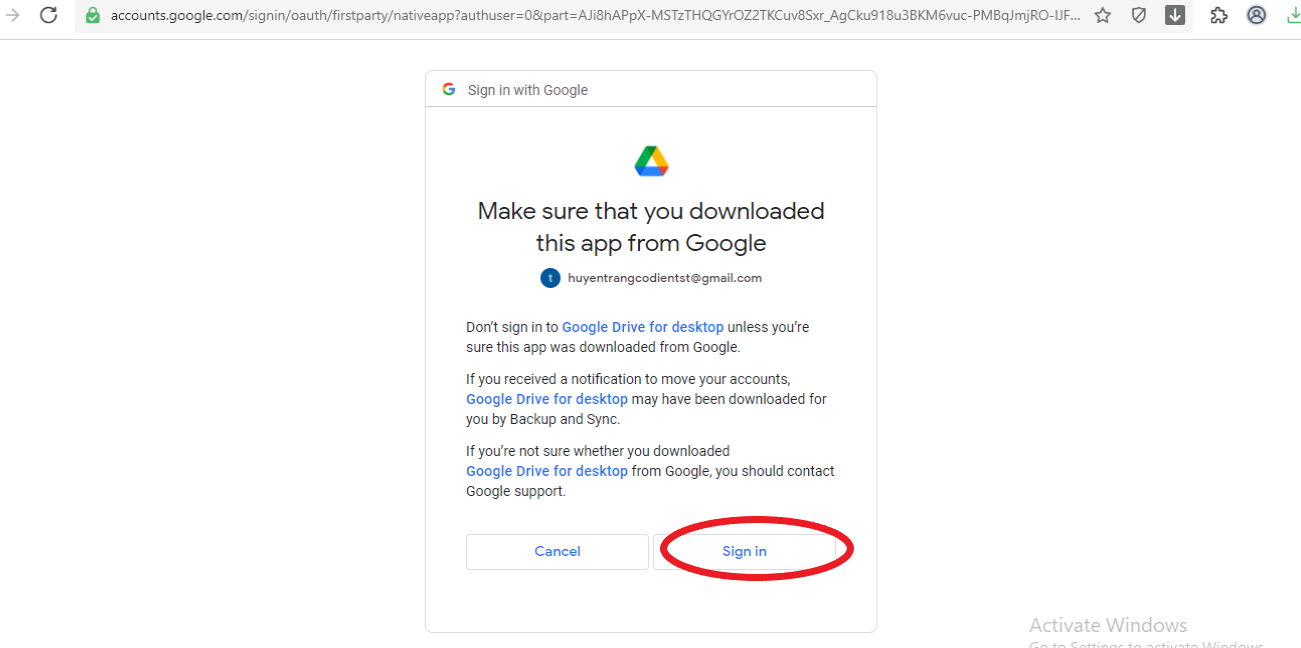
<p>Trong trường hợp các bạn có nhiều tài khoản gmail, hãy Lựa chọn tài khoản gmail các bạn muốn và chọn&nbsp;<strong>“Sign in”</strong>&nbsp;để hoàn tất</p>
<br />
<img alt="undefined" data-lazyloaded="1" data-ll-status="loaded" data-src="https://lanit.com.vn/wp-content/uploads/2022/06/cach-tao-gg-drive-07.png" height="648" src="https://thanhphuoc.edu.vn/uploads/news/2023_02/cach-tao-gg-drive-07.png" title="" width="1301" />
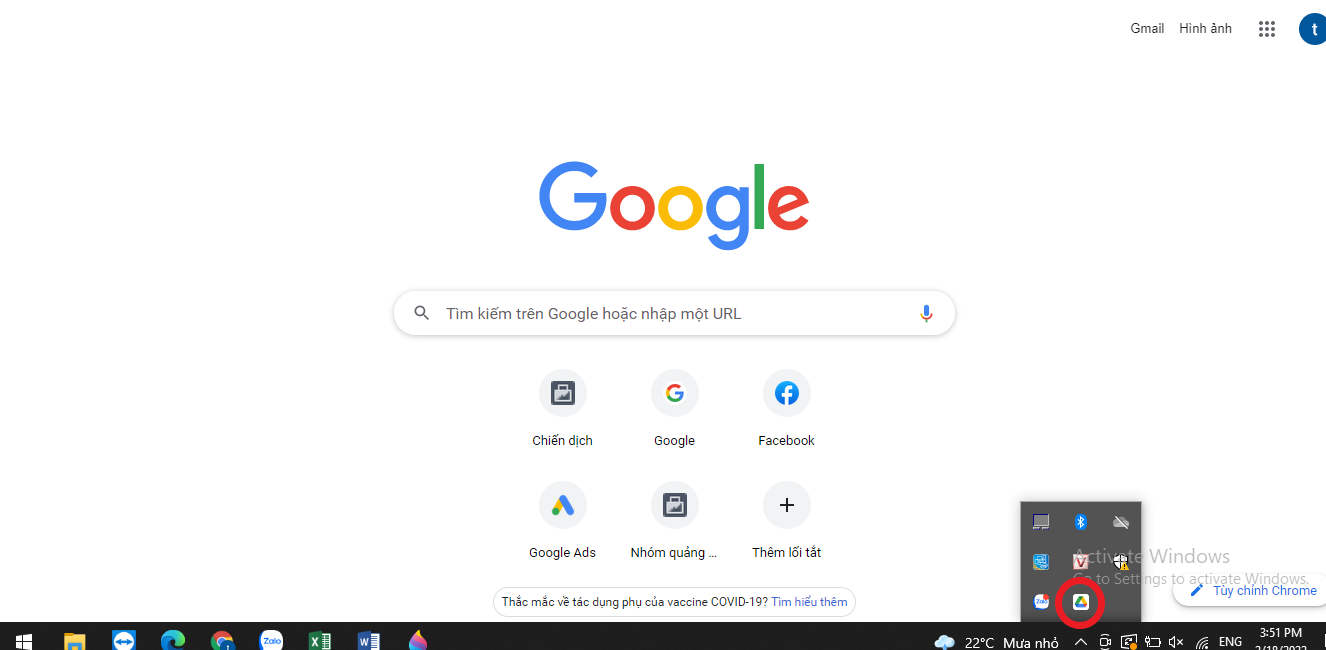
<p><strong>B5. Cài đặt Drive thành công</strong>&nbsp;tức là: Dưới thanh công cụ ta sẽ thấy icon Drive, bên ngoài màn hình destop xuất hiện shortcut: Google sheets, Google Docs, Google Slides</p>
<br />
<img alt="undefined" data-lazyloaded="1" data-ll-status="loaded" data-src="https://lanit.com.vn/wp-content/uploads/2022/06/cach-tao-gg-drive-08.png" height="650" src="https://thanhphuoc.edu.vn/uploads/news/2023_02/cach-tao-gg-drive-08.png" title="" width="1326" />
<p><strong>B6. Lưu trữ và đồng bộ dữ liệu trên máy tính</strong></p>

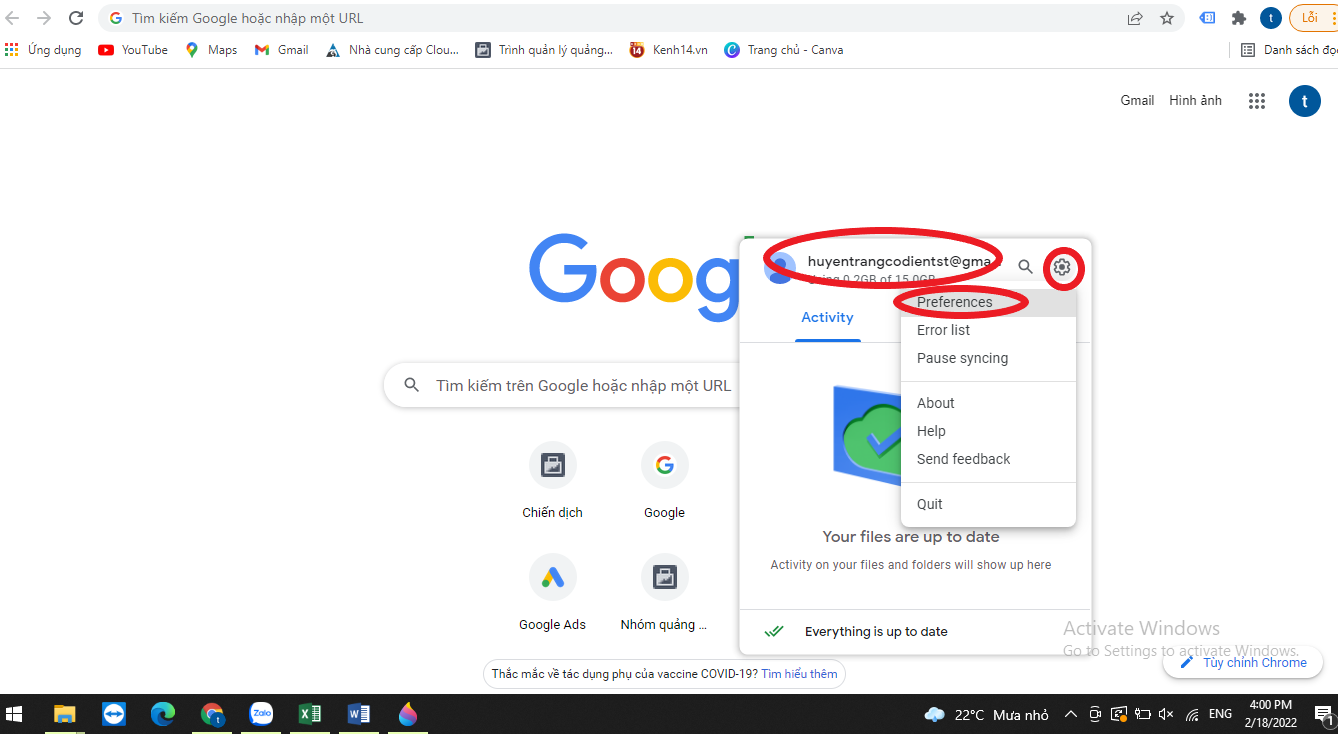
<p>Click vào&nbsp;<strong>icon Drive bên phải dưới cùng thanh công cụ</strong></p>

<p><strong>Click</strong>&nbsp;biểu tượng&nbsp;<strong>bánh răng</strong>&nbsp;-&gt; chọn&nbsp;<strong>Preferences</strong></p>
<br />
<img alt="undefined" data-lazyloaded="1" data-ll-status="loaded" data-src="https://lanit.com.vn/wp-content/uploads/2022/06/cach-tao-gg-drive-09.png" height="734" src="https://thanhphuoc.edu.vn/uploads/news/2023_02/cach-tao-gg-drive-09.png" title="" width="1338" />
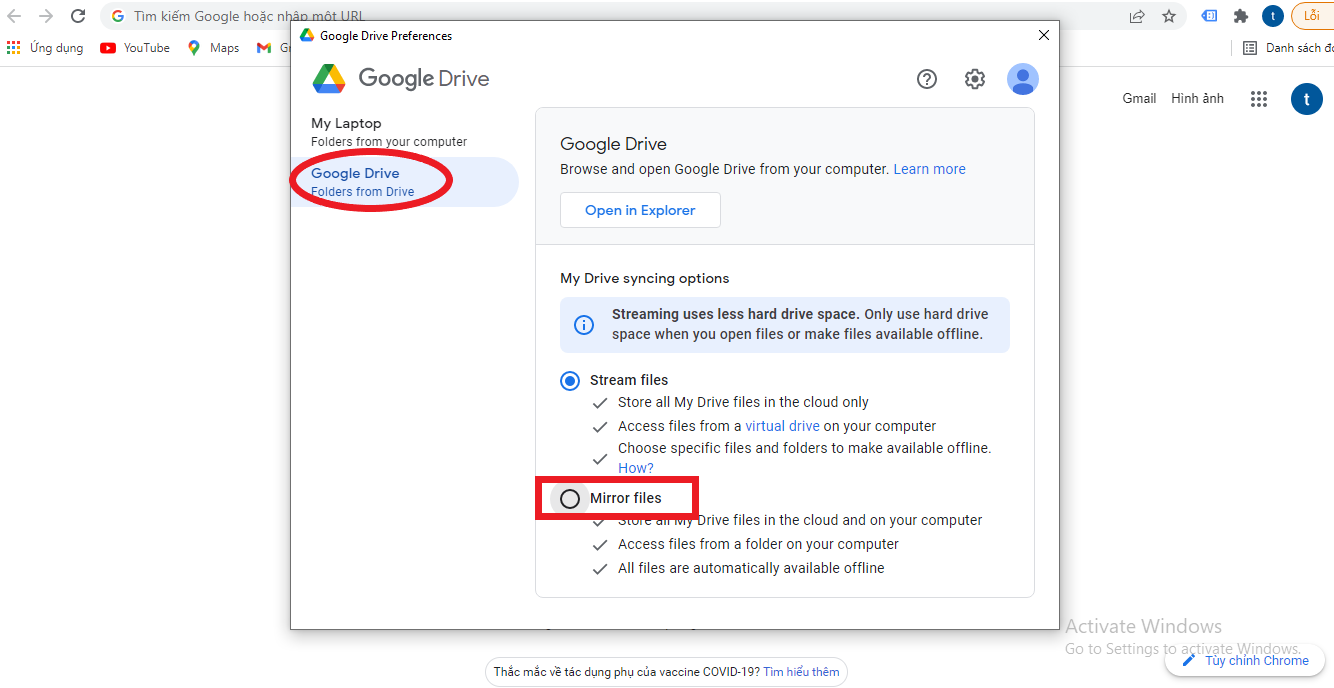
<p>Tiếp theo chọn&nbsp;<strong>Google Drive</strong>&nbsp;-&gt;&nbsp;<strong>nhấp Mirror Files</strong>, dữ liệu mặc định lưu ở ổ C</p>
<br />
<img alt="undefined" data-lazyloaded="1" data-ll-status="loaded" data-src="https://lanit.com.vn/wp-content/uploads/2022/06/cach-tao-gg-drive-10.png" height="688" src="https://thanhphuoc.edu.vn/uploads/news/2023_02/cach-tao-gg-drive-10.png" title="" width="1334" />
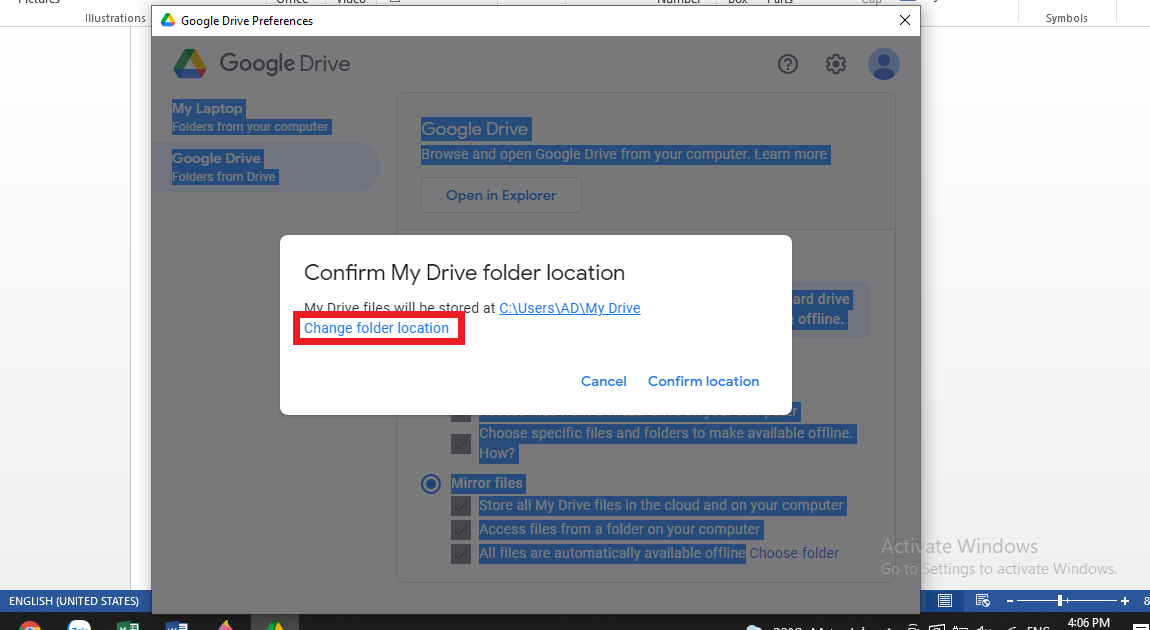
<p>Chọn&nbsp;<strong>“change folder location”</strong>&nbsp;để thay đổi nơi lưu trữ mặc định (ổ C), Có thể ổ D, E.</p>
<br />
<img alt="undefined" data-lazyloaded="1" data-ll-status="loaded" data-src="https://lanit.com.vn/wp-content/uploads/2022/06/cach-tao-gg-drive-11.png" height="630" src="https://thanhphuoc.edu.vn/uploads/news/2023_02/cach-tao-gg-drive-11.png" title="" width="1150" />
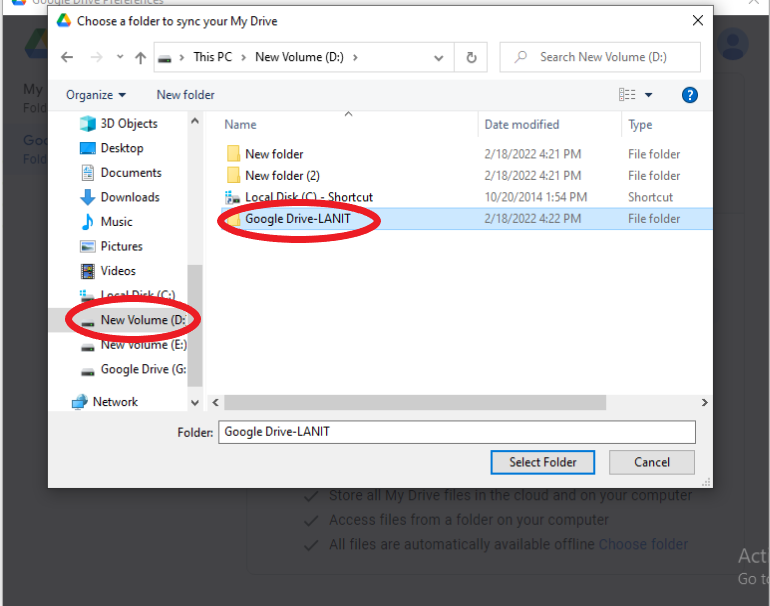
<p>Ví dụ tôi chọn ổ D làm nơi lưu trữ. Tại ổ D, tạo forder mới VÀ đặt tên “Google Drive – LANIT”</p>
<br />
<img alt="undefined" data-lazyloaded="1" data-ll-status="loaded" data-src="https://lanit.com.vn/wp-content/uploads/2022/06/cach-tao-gg-drive-12.png" height="606" src="https://thanhphuoc.edu.vn/uploads/news/2023_02/cach-tao-gg-drive-12.png" title="" width="770" />
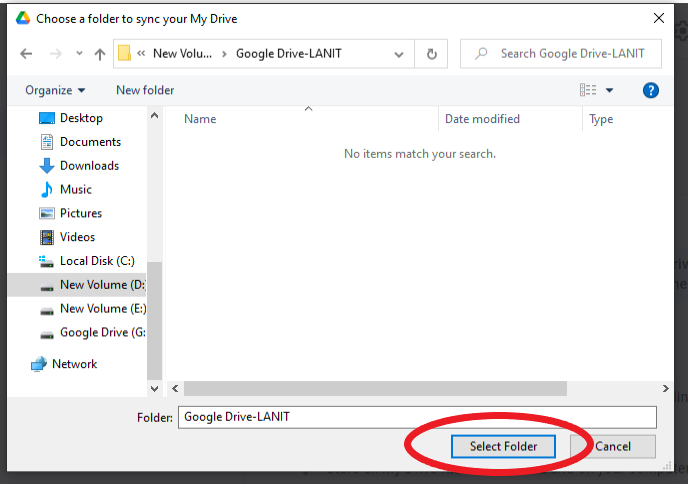
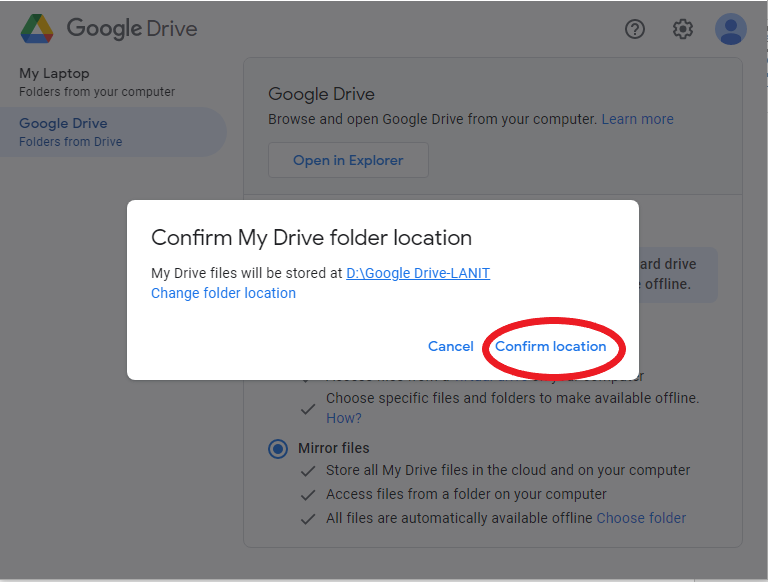
<p>Mở Foder đó, và chọn&nbsp;<strong>“Select Forder”</strong>,&nbsp;<strong>chọn “Confirm location”</strong>&nbsp;để nhớ vị trí lưu trữ mặc định đã được thay đổi</p>
<br />
<img alt="undefined" data-lazyloaded="1" data-ll-status="loaded" data-src="https://lanit.com.vn/wp-content/uploads/2022/06/cach-tao-gg-drive-13.png" height="484" src="https://thanhphuoc.edu.vn/uploads/news/2023_02/cach-tao-gg-drive-13.png" title="" width="688" />
<p>Chon&nbsp;<strong>Save</strong>&nbsp;-&gt; chọn<strong>&nbsp;“Restart Now”</strong>, các thay đổi hoàn tất</p>
<br />
<img alt="undefined" data-lazyloaded="1" data-ll-status="loaded" data-src="https://lanit.com.vn/wp-content/uploads/2022/06/cach-tao-gg-drive-14.png" height="582" src="https://thanhphuoc.edu.vn/uploads/news/2023_02/cach-tao-gg-drive-14.png" title="" width="768" />
<p><strong>B7.</strong>&nbsp;Lúc này, Tất cả dữ liệu trên file Google Drive được lưu trữ trên forder Ổ D“Google Drive – LANIT” sẽ giống với file tại lưu trữ đám mây google Drive trên Website</p>

<h2>Sử dụng phần mềm GOOGLE DRIVE trên máy tính</h2>

<p>Trên Google Drive PC, chúng ta làm việc như trên máy tính bình thường. Tuy nhiên, có 1 số<strong>&nbsp;Lưu ý dưới đây:</strong></p>

<ul>
	<li>Máy tính bạn luôn có kết nối Internet</li>
	<li>CHÚ Ý đến dung lượng lưu trữ miễn phí còn lại trên Drive</li>
	<li>Làm việc trên forder Google Driver đã cài đặt mặc định (Google Drive – LANIT), các file này sẽ tự động được đồng bộ lên Drive&nbsp;</li>
</ul>

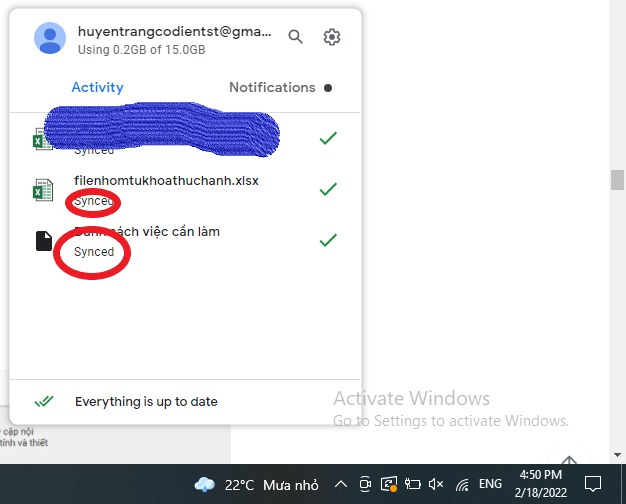
<p>Để biết được file mới của mình đã được đồng bộ lên drive chưa? Ta nhấp chuột phải vào biểu tượng Drive ở góc phải dưới cùng của màn hình máy tính</p>
<br />
<img alt="undefined" data-lazyloaded="1" data-ll-status="loaded" data-src="https://lanit.com.vn/wp-content/uploads/2022/06/cach-tao-gg-drive-16.png" height="504" src="https://thanhphuoc.edu.vn/uploads/news/2023_02/cach-tao-gg-drive-16.png" title="" width="626" />
<p>Nếu Trạng thái file đó được báo&nbsp;<strong>“Synced”&nbsp;</strong>– Tức file đã đã được đồng bộ lên đám mây drive website</p>

<p>Hy vọng những kiến thức hữu ích trên sẽ giúp anh chị và các bạn trong quá trình học tâp và làm việc an toàn, tránh mất mát dữ liệu khi máy tính bị hư hỏng</p>
&nbsp;
		</div>
	</div>
	<div id="footer" class="clearfix">
		<div id="url">
			<strong>URL của bản tin này: </strong><a href="https://thanhphuoc.edu.vn/vi/news/hoat-dong-cong-nghe-thong-tin/cach-tao-o-dia-google-drive-tren-may-tinh-17.html" title="Cách Tạo Ổ Đĩa Google Drive Trên Máy Tính">https://thanhphuoc.edu.vn/vi/news/hoat-dong-cong-nghe-thong-tin/cach-tao-o-dia-google-drive-tren-may-tinh-17.html</a>

		</div>
		<div class="clear"></div>
		<div class="copyright">
			&copy; Tiểu học Thạnh Phước
		</div>
		<div id="contact">
			<a href="mailto:tieuhoc@thanhphuoc.edu.vn">tieuhoc@thanhphuoc.edu.vn</a>
		</div>
	</div>
</div>
        <div id="timeoutsess" class="chromeframe">
            Bạn đã không sử dụng Site, <a onclick="timeoutsesscancel();" href="https://thanhphuoc.edu.vn/#">Bấm vào đây để duy trì trạng thái đăng nhập</a>. Thời gian chờ: <span id="secField"> 60 </span> giây
        </div>
        <div id="openidResult" class="nv-alert" style="display:none"></div>
        <div id="openidBt" data-result="" data-redirect=""></div>
<script src="https://thanhphuoc.edu.vn/assets/js/jquery/jquery.min.js"></script>
<script>var nv_base_siteurl="/",nv_lang_data="vi",nv_lang_interface="vi",nv_name_variable="nv",nv_fc_variable="op",nv_lang_variable="language",nv_module_name="news",nv_func_name="savefile",nv_is_user=0, nv_my_ofs=-4,nv_my_abbr="EDT",nv_cookie_prefix="nv4",nv_check_pass_mstime=1738000,nv_area_admin=0,nv_safemode=0,theme_responsive=0,nv_recaptcha_ver=3,nv_recaptcha_sitekey="6LcMbUYhAAAAAJzdrmrIoHEO-jZYxDFSKCa5c8zE",nv_recaptcha_type="image",XSSsanitize=1;</script>
<script src="https://thanhphuoc.edu.vn/assets/js/language/vi.js"></script>
<script src="https://thanhphuoc.edu.vn/assets/js/DOMPurify/purify.js"></script>
<script src="https://thanhphuoc.edu.vn/assets/js/global.js"></script>
<script src="https://thanhphuoc.edu.vn/assets/js/site.js"></script>
<script src="https://thanhphuoc.edu.vn/themes/default/js/news.js"></script>
<script src="https://thanhphuoc.edu.vn/themes/default/js/main.js"></script>
<script src="https://thanhphuoc.edu.vn/themes/default/js/custom.js"></script>
<script type="application/ld+json">
        {
            "@context": "https://schema.org",
            "@type": "Organization",
            "url": "https://thanhphuoc.edu.vn",
            "logo": "https://thanhphuoc.edu.vn/uploads/unnamed.webp"
        }
        </script>
<script src="https://thanhphuoc.edu.vn/themes/default/js/bootstrap.min.js"></script>
</body>
</html>